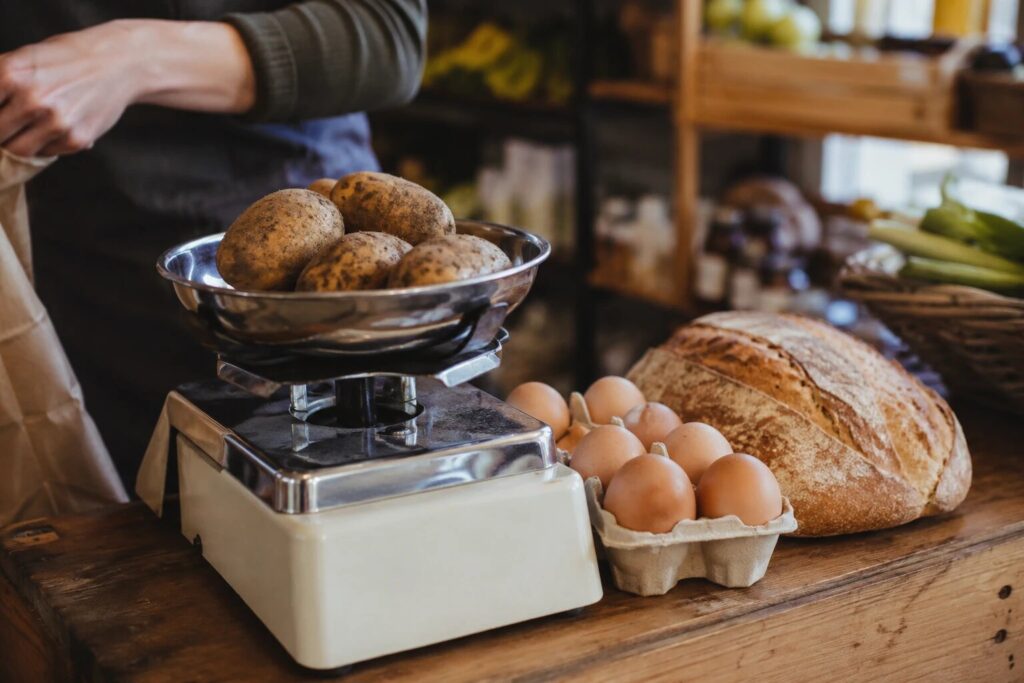

It usually starts with the phone. A regular rings during the Saturday rush to reserve a veg box, or a cake for Sunday, and someone half-hears it over the din of the counter and scribbles it on the edge of a receipt roll. One Sussex greengrocer described the old way as replaying voicemails over and over, copying each order onto scraps of paper, and still sometimes sending the wrong items or charging the wrong price. Anyone who has worked a counter knows the problem underneath it: when the phone rings mid-rush, the person standing in front of you always wins, and the call becomes a misheard order or trade you simply lose.
Letting people order online for collection fixes that. The order arrives written down, in full, at a time the customer has chosen, and you work through a tidy list instead of a fistful of scraps. The only real question is how you add it to a WordPress site, and most people assume the answer is WooCommerce. For collection-only ordering, it usually isn’t. Here is why, and the simpler way to do it.
Why WooCommerce is usually the wrong tool for collection-only
WooCommerce is a superb piece of software. If you post parcels, run a large catalogue, or sell subscriptions, it earns its place and this guide is not really for you. But it is built to sell and ship goods anywhere, and that shape works against you when all you want is for local people to order ahead and collect.
Start with the feature you most need: collection time slots. WooCommerce’s built-in “local pickup” is a single flat shipping method. It marks an order as collection and little else, with no choice of times, no cap on how many orders you take per slot, and no lead time for things you make to order. To get those you add paid extensions, each its own yearly subscription: WooCommerce’s own Delivery & Pickup Scheduler for slots and capacity, a separate add-on for more than one collection point, and a price-calculator extension to sell by weight. Individually they run from roughly $80 to $130 a year; together, just for the collection setup, you are into several hundred dollars a year in renewals, before you have paid for hosting or a theme.
Then there is the checkout. Even after a customer chooses “local pickup”, WooCommerce will still ask them for a shipping address unless you add custom code or yet another plugin to hide it. Pickup itself lives inside WooCommerce’s shipping zones, so a shop that never posts a thing still has to set up and maintain shipping zones just to switch most of them off.
And it all carries weight. WooCommerce adds a couple of dozen database tables, and by its own documentation loads a lot of data on every page in a way that can slow a site down. None of that is a scandal, and recent versions handle orders far faster than they used to. But every extension you bolt on is more code running on each page load, and one more thing to keep updated and secure. For a shop that just wants collection orders, you end up running a full e-commerce platform to use one corner of it.
What you actually need for click and collect
Strip the job back and the list is short and specific:
- A simple storefront customers can browse.
- Collection time slots, with a cap on orders per slot and a lead time for made-to-order items.
- Products you can sell by unit, by the pack, or by weight, because a loaf, a six-pack of eggs, and loose cheese are priced three different ways.
- A checkout built around choosing a collection time, not entering a delivery address.
- One place to see the day’s orders, and a way to take payment (or not) that suits how you trade.
That is a far smaller thing than a full online shop, and it is exactly what a purpose-built pickup plugin gives you.
Setting it up with BoxCart, step by step
BoxCart is a free WordPress plugin built only for this. No WooCommerce underneath, no shipping to configure, no delivery machinery to switch off. Here is the whole setup.
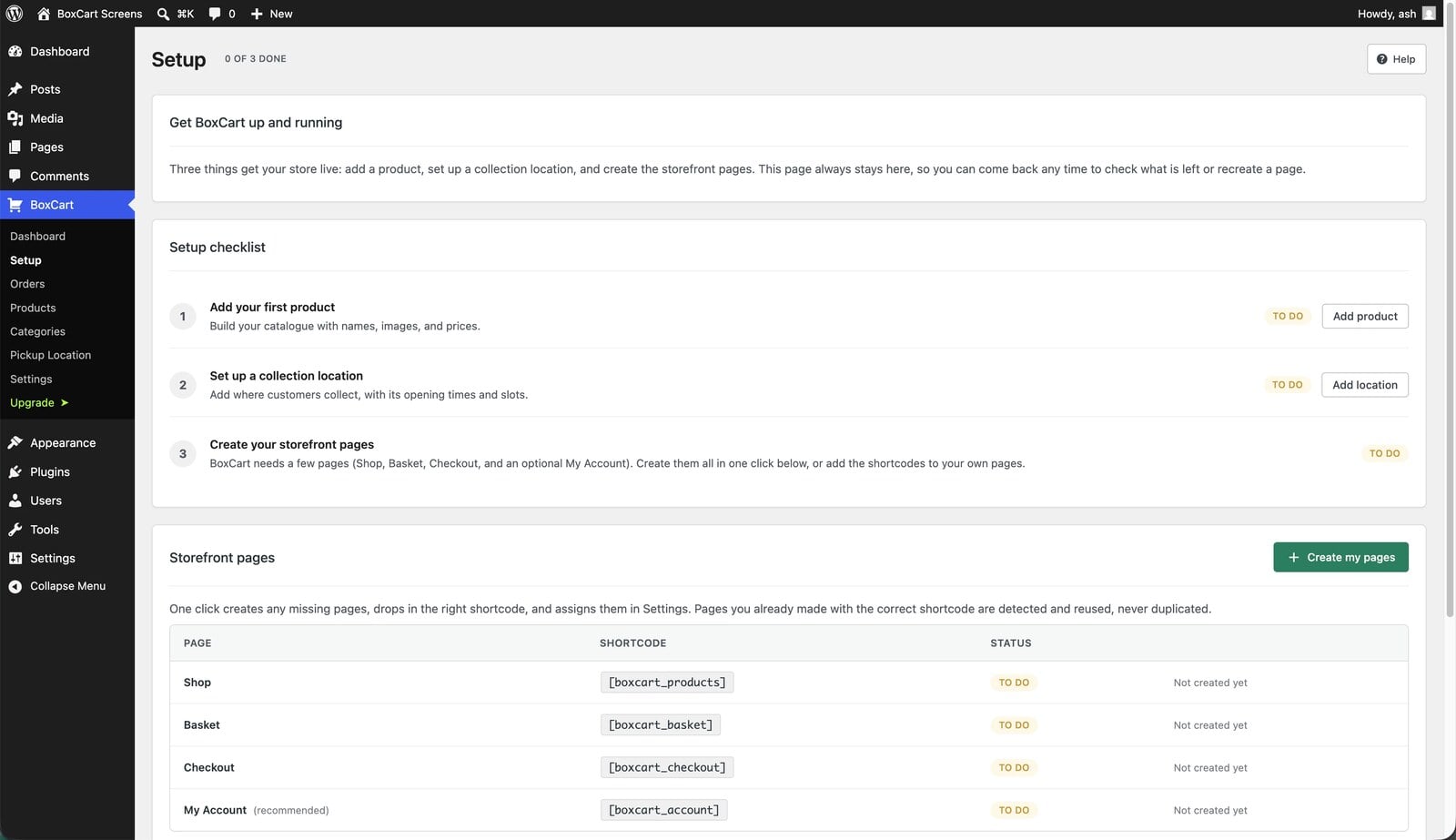
- Install the plugin and run the guided setup. Search for BoxCart under Plugins, then Add New, and activate it. Open BoxCart, then Setup, and it creates your Shop, Basket, and Checkout pages in one click, with the right blocks already dropped in. No shortcode hunting.
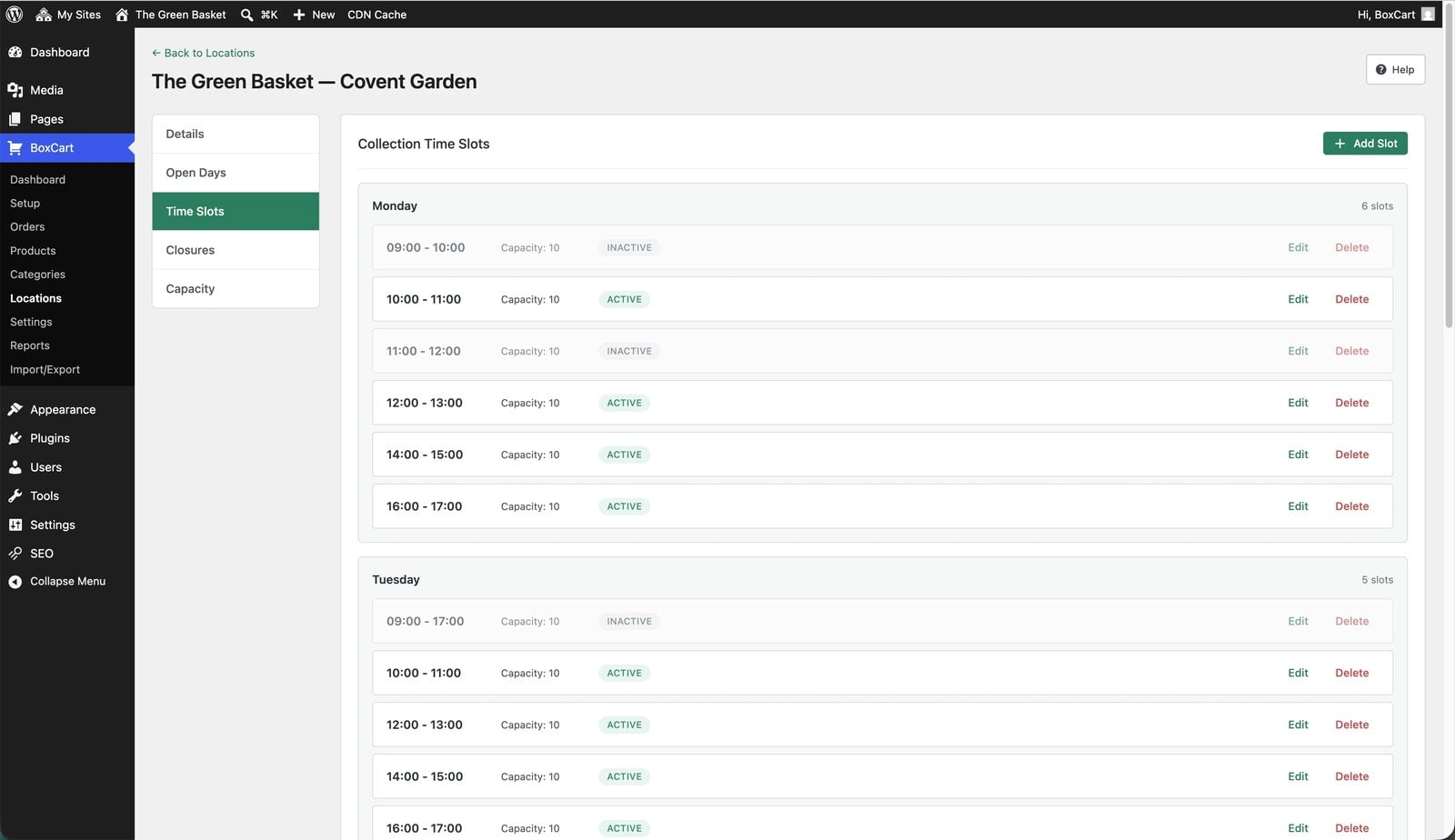
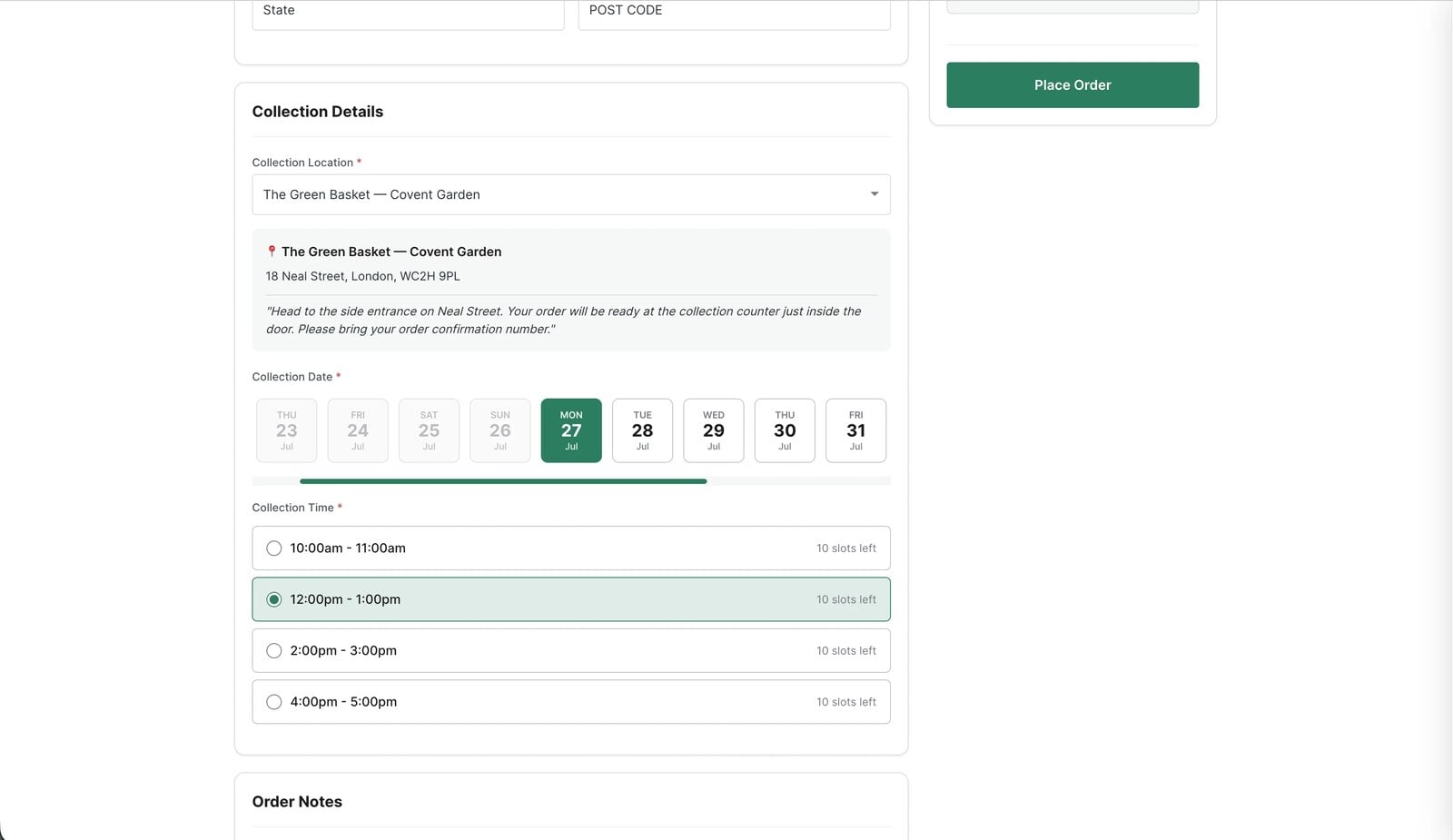
- Add your pickup location and collection slots. Under Locations, set your address, collection instructions, and opening hours, then define your time slots and how many orders you will accept in each. If you make things to order, add a lead time so nobody can book a slot that leaves you no time to prepare. Full slots drop off the list on their own, so you never promise more than you can hand over.
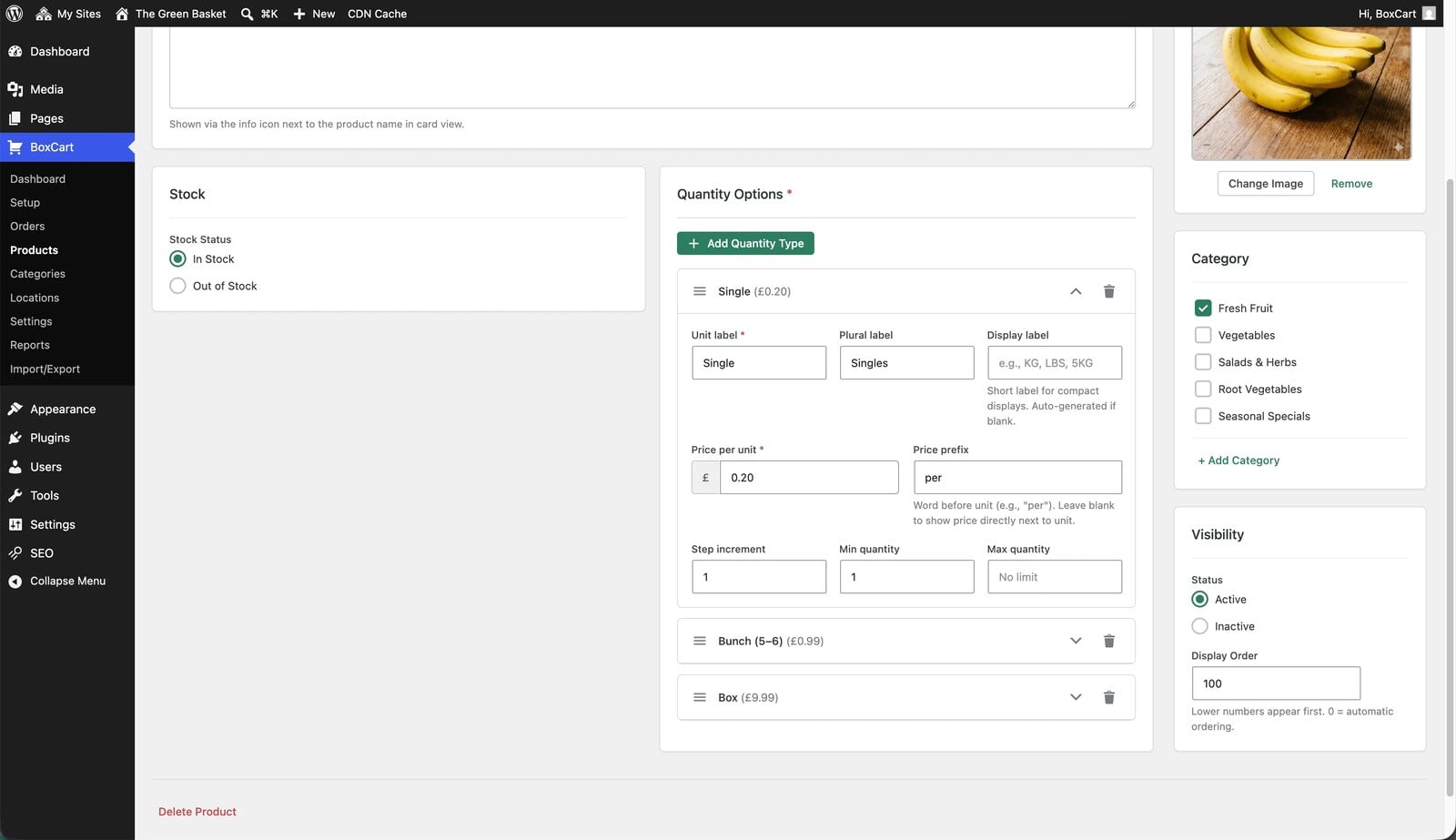
- Add your products the way you actually sell them. Give each one a name, a price, and a photo, then choose whether it sells by unit, by the pack, or by weight in grams, kilos, pounds, or ounces. Set the step (say 250g at a time) and a minimum and maximum, so a potato order arrives at a weight you can weigh and a loaf stays a whole loaf.
- Choose how you take payment. Cash on collection and bank transfer are built in and free. If you would rather take card up front, BoxCart Pro adds Stripe, with Apple Pay, Google Pay, and the rest.
- Place a test order. Walk it through as a customer would: browse the storefront, add to the basket, pick a collection slot, and check out. Confirm the order lands in your dashboard and the confirmation email arrives, and you are ready to share the link.
Most shops are taking real collection orders the same afternoon.
What your customers actually get
Not just “a clean storefront”, but something worth describing. Customers browse a card-view shop with search, categories, and a mini-basket that follows them as they add things. At checkout they choose from the slots you have opened, with live availability shown, so they drift towards the times you still have room for. There is no account wall: guest checkout is the default, so nothing sits between deciding to order and being done. A regular who wants faster reordering can create an account afterwards, rather than being made to before they have bought a thing.
When they check out they get a branded confirmation email with their items and collection time, plus a secure link to view the order without logging in. As you move an order along its stages, from pending to ready, BoxCart can email them too, so “your order is ready to collect” is one less thing you do by hand.
Free versus Pro, honestly
Everything you have just read is in the free version. To be straight about where the line falls, here is what each side gives you.
In the free version
- Storefront, collection time slots, per-slot capacity, and lead times
- Sell by unit, weight, or pack
- Order dashboard, status emails, and CSV export
- Guest checkout, plus optional customer accounts
- Cash on collection and bank transfer
What Pro adds
- Multiple pickup locations
- Stripe card payments (Apple Pay, Google Pay, Klarna, PayPal)
- Members-only pricing, favourites, and one-click reorder
- Two-way order messaging, printable pick lists, and sales reports
- Holiday closures and per-date capacity overrides
The free build is a complete, working click and collect shop, not a teaser. Pro is there for when you outgrow a single location or want to take card payment up front. You can see the full split on the features page.
The after picture
Picture the next Saturday. The veg boxes are reserved, the cake order is in with a time written against it, and the phone is quiet enough that you can actually talk to the person at the counter. Every order sits on one list, in order of collection, and not one of them is on a scrap of paper. That is the whole reason to move collection online, and on WordPress you can do it without WooCommerce, without a developer, and without a monthly fee. Install BoxCart, add a handful of products, and take a test order to feel it for yourself.
Add local pickup to your shop
BoxCart is free on WordPress.org, a complete pickup-ordering store with time slots and no WooCommerce required.
Rather we set it all up for you? Click & Collect Websites builds, hosts and looks after your ordering shop.